contact@ffxf.net
 Console

Our images cover the most requested systems, prepared with cloud-init: you get a server that boots with your SSH key and its network. That is not always enough: a distribution we do not offer, partitioning done your way, a disk encrypted from the first install. For those cases, an FFxF server can now boot netboot.xyz, when you order it or when you reinstall it.
We ran the whole path on a Nano, the way a customer would: order, the netboot.xyz menu in the console, Debian 13 installed by hand, reboot from the disk. Here is what to know before you start, above all about the network, which does not configure itself.
1. What you get
Pick netboot.xyz in the Other tab of the system picker, when ordering or under
Reinstall. Through the API, it is the netboot image. The machine comes
with:
- an empty disk, the size of your plan: the Debian installer saw 21.5 GB on a Nano, which is its 20 GiB;
- the netboot.xyz ISO attached, with a boot order of disk first, ISO second;
- a graphical console, instead of the serial console of our images;
- nothing else: no password, no SSH key, no network configured.
In our test, the machine was ready 7 seconds after the order. On first boot, the BIOS
tries the disk, prints Boot failed: not a bootable disk, then moves on to
the ISO. Open the console from the server page: netboot.xyz is already looking for a
network.
2. No DHCP: you type the network in
Our addresses are static and there is no DHCP server on the public network. An anti-spoofing filter only lets your machine send from its own addresses: an address you make up, or one taken from another server, will not get out. The delivery (or reinstall) email therefore gives you the exact values: address, netmask, gateway, DNS, and the network card that carries each address.
netboot.xyz tries DHCP on each card, sees it fail and asks for the configuration:
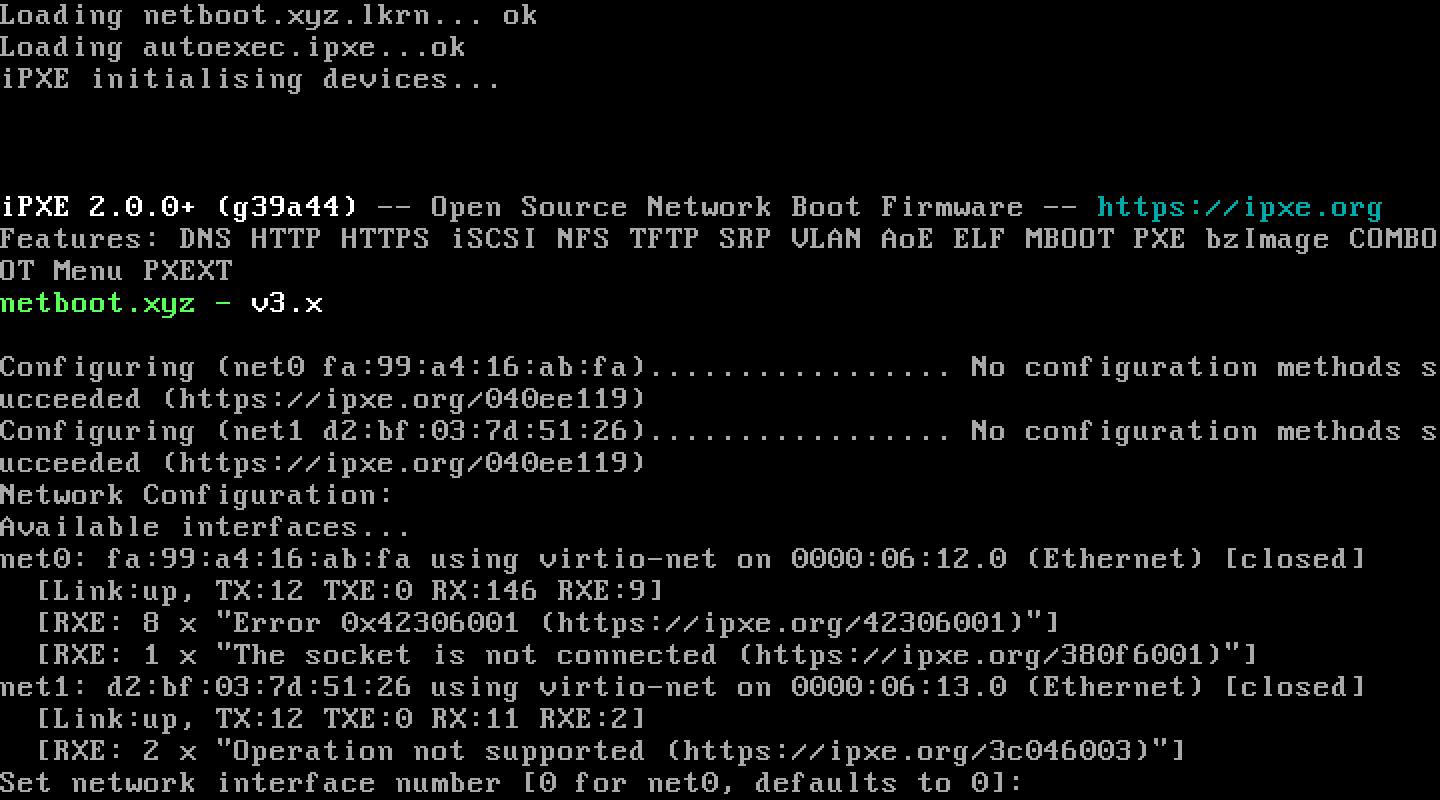
Press Enter to keep interface 0, then type the IPv4 address, the netmask (dotted,
255.255.255.0), the gateway and one DNS server. To skip the DHCP
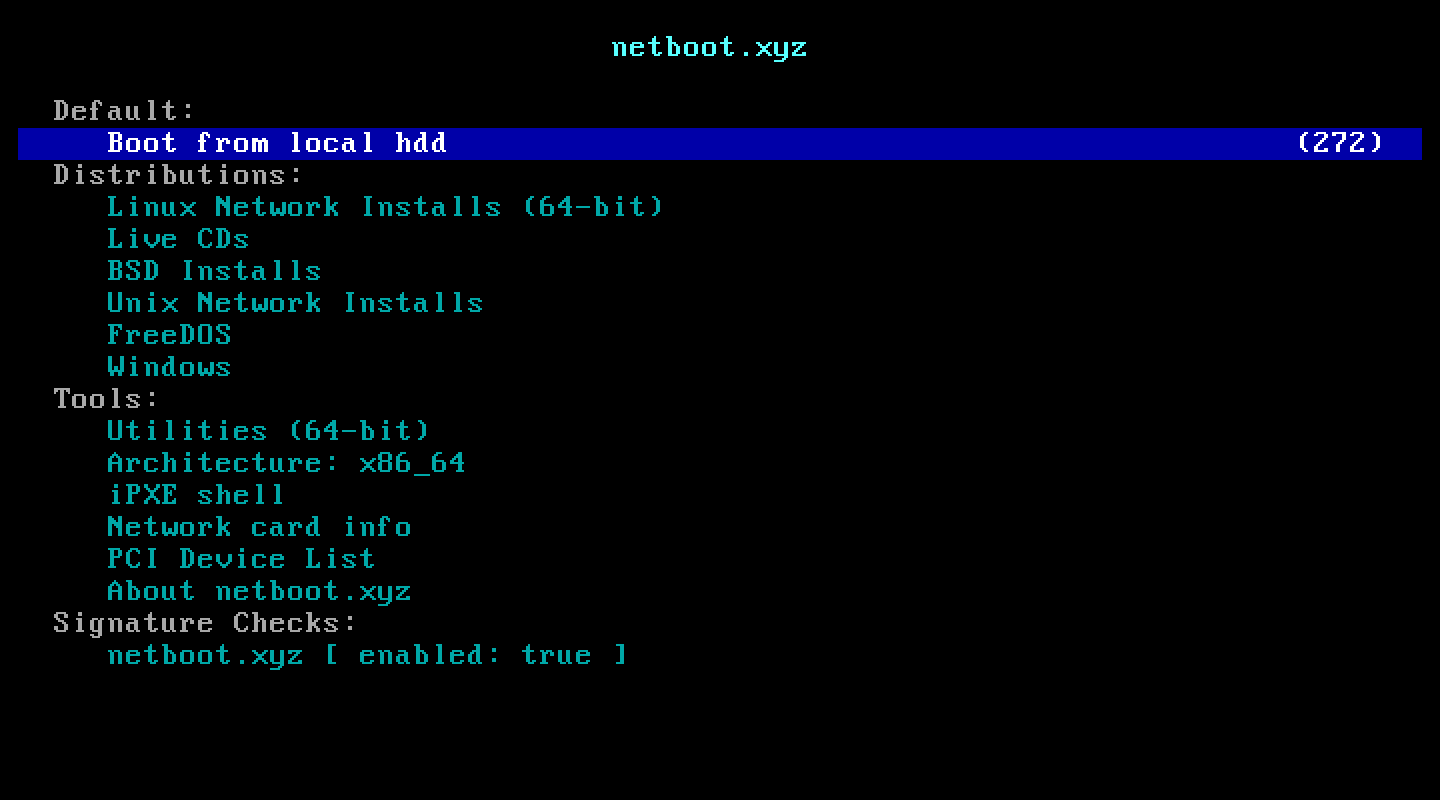
attempts, press m on the boot screen and choose Manual network
configuration. The menu shows up a few seconds later:
3. Two network cards, one per address family
A server with both IPv4 and IPv6 has two network cards: IPv4 on the first one
(net0), IPv6 on the second (net1). The hypervisor sets the
IPv6 VLAN itself, so there is nothing to configure on that side. An IPv6 address put on
the first card, however, answers nothing: we found that out on our first try.
Once the system is installed, the cards get new names. Linux names them after their
PCI slot, 18 and 19 on our machines: net0 becomes ens18,
net1 becomes ens19. The Debian installer asks which one to
use:

Pick ens18, let DHCP fail, then Configure network manually with
the same values as in netboot.xyz. The installer only sets up one card. We added IPv6
after the install, in /etc/network/interfaces.d/ens19:
auto ens19
iface ens19 inet6 static
    address <your IPv6>/64
    gateway <IPv6 gateway from the email>
After sudo ifup ens19, the machine answers over IPv6, and
apt-get update works with IPv6 forced. Both addresses come back on their
own after a reboot. The IPv6 block routed to your server, if you have one, is not
configured either: add its addresses on ens19 when you need them.
4. An IPv6-only server
On an IPv6-only plan, the only card is
net0, and the netboot.xyz manual setup can only set an IPv4 address. Press
m at boot, choose iPXE Debug Shell and type the lines from the
email, with your values:
set net0/ip6 <your IPv6>
set net0/len6 64
set net0/gateway6 <IPv6 gateway>
set dns6 2606:4700:4700::64
set ip 0.0.0.0
ifopen net0
chain --autofree https://boot.netboot.xyz/menu.ipxe
The set ip 0.0.0.0 line cost us one try. The netboot.xyz
menu.ipxe starts with isset ${ip} || dhcp: with no IPv4 set,
it retries DHCP, fails and closes the card. A null IPv4 address passes that test
without creating a route, and everything else goes over IPv6. The
2606:4700:4700::64 resolver is a DNS64: it also gives an IPv6 address to
sites that only exist over IPv4, which our NAT64 then reaches. Down that path, the
menu loaded and the Debian installer downloaded normally.
5. Drivers, BIOS and first boot
The disk sits on a VirtIO SCSI controller and the network cards are VirtIO: your
system needs virtio_scsi and virtio_net. Common Linux and BSD
installers have them. The Debian network installer loads virtio_scsi
with the components it downloads from the mirror: a modprobe run too
early answers Module virtio_scsi not found, then the disk shows up at the
partitioning step.

The machine boots in BIOS mode, not UEFI: the installer puts GRUB in BIOS mode
(grub-pc) on /dev/sda, with no EFI partition. When it is
done, reboot without ejecting anything. The BIOS now finds a boot loader on the disk
and starts your system; the ISO only matters while the disk is empty.
6. What changes afterwards
Your client area does not know this system's password and cannot inject anything into it: password reset is turned off for it. Console firewalls, the anti-spoofing filter and traffic accounting apply as on any server, since they live in the hypervisor.
To go back to one of our images, reinstall the server and pick it: the disk is wiped, and you get cloud-init, your SSH key and a configured network again.