contact@ffxf.net
 Console
The "server ready" email from the console has everything you need: the server's
IPv4 address, the Administrator user and a sixteen-character
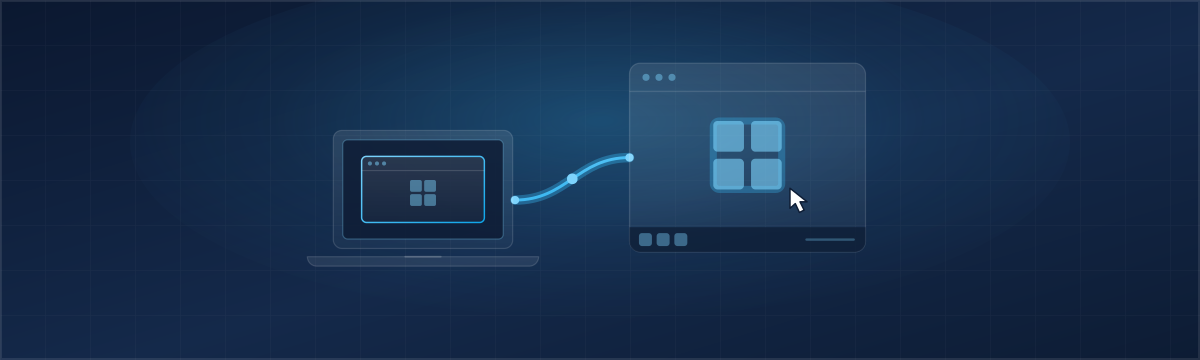
password. Remote Desktop (RDP) shows that server's screen in a window on your own
computer, with your keyboard, your mouse and your clipboard. Here is how to open
it from Windows, macOS, Linux or a phone, what the certificate warning means, what
to check when the connection fails, and what to set before leaving the server to
work on its own.
1. What you need
Three things, all in the delivery email:
- the server's IPv4 address (it is also on the server's page in the console);
- the user:
Administrator, on every Windows image we offer, MetaTrader included; - the password: sixteen letters and digits, no symbols, shown once in that email.
Lost the password? In the console, on the server's page, Request Password Reset generates a new one and emails it to you. The server must be running.
Remote Desktop listens on TCP port 3389. Our images leave it open from the first boot, and a machine with no cloud firewall accepts all incoming traffic: there is nothing to open before the first connection. The end of this article explains how to restrict it to your own addresses afterwards.
2. From Windows
The client is already installed: Remote Desktop Connection in the Start menu, or Win+R then:
mstsc
Type the IPv4 address in Computer, then Connect. Windows asks
for credentials: Administrator and the password from the email. If
the dialog offers your own PC account, pick More choices then Use a
different account.
Before connecting, Show Options gives access to the useful settings:
- General: Save As creates a
.rdpfile; a double-click then opens the session; - Display: full screen or window size;
- Local Resources: the clipboard is shared by default; More… mounts a drive of your PC inside the server, handy for copying files (it shows up in This PC).
To know whether the port answers before even opening the client, in PowerShell on your PC:
Test-NetConnection 203.0.113.10 -Port 3389
TcpTestSucceeded : True means the server is reachable; the rest is a
matter of credentials.
3. From macOS
Install Microsoft's Windows App from the Mac App Store, free of charge (it is the former Microsoft Remote Desktop, renamed). Then:
- the + button, then Add PC;
- PC name: the IPv4 address;
- Credentials: Add credentials, user
Administratorand the password; - double-click the server's tile.
The clipboard is shared. For files, the Folders tab of the connection mounts a folder of the Mac inside the server.
4. From Linux
Two common options: Remmina with its RDP plugin, or FreeRDP on the command line.
# Debian 13, Ubuntu 24.04: FreeRDP 3
sudo apt install freerdp3-x11
xfreerdp3 /v:203.0.113.10 /u:Administrator /dynamic-resolution +clipboard
The password is asked at launch; do not pass it on the command line, it would
stay in your shell history. On older releases the package is
freerdp2-x11 and the command xfreerdp, with the same
options. /dynamic-resolution fits the remote screen to the window
size, +clipboard shares the clipboard, and
/drive:share,/home/you/Documents mounts a folder inside the server.
With Remmina (sudo apt install remmina remmina-plugin-rdp): new
connection, RDP protocol, server = the IPv4 address, user
Administrator. To test the port from a terminal, Linux or macOS:
nc -vz 203.0.113.10 33895. From a phone or a tablet
Microsoft's app, Windows App (formerly Remote Desktop), exists
on iOS and Android, free of charge. Add PC, the IPv4 address,
Administrator and the password. Handy to check that a program is
running or to restart a service; for real work, use a screen and a keyboard.
6. The certificate warning
On the first connection, the client warns that the identity of the server cannot be verified. That is expected: Windows generates its own certificate at first boot, signed by nobody, and the client cannot tie it to a known authority. The session is encrypted all the same.
To be sure you are talking to your server and not to someone sitting in between, compare the thumbprint. On the client side, the warning offers to show the certificate (View certificate then Details in mstsc; FreeRDP prints it in the terminal). On the server side, from the VNC console in your client area, in PowerShell:
Get-ChildItem 'Cert:\LocalMachine\Remote Desktop' | Format-List Subject, Thumbprint, NotAfterSame thumbprint on both sides: tick Don't ask me again and continue. After a reinstall of the server, Windows generates a new certificate and the warning comes back, which is normal.
7. It does not connect
The client waits, then gives up. In order:
- Server just delivered? Windows finishes its first boot after the email goes out: wait a few minutes, then try again.
- Is the server running? The server's page in the console says so, and lets you start or restart it.
- Did you attach a cloud firewall to this machine? It needs an inbound TCP 3389 rule from your address; the RDP shortcut in the console fills it in. With no firewall, everything gets in: the problem is elsewhere.
- Your own network: some corporate networks and public hotspots block outbound port 3389. Try from another connection, a phone's tethering for instance.
- Server ordered as IPv6-only: your connection needs IPv6, Remote Desktop does not cross a network that only has IPv4.
Credentials refused. The user is Administrator, with
no domain (if the client insists on one, .\Administrator). Copy the
password from the email rather than retyping it, and check that no space slipped
in at the end. It only contains letters and digits: the keyboard layout is not to
blame.
Account locked. Our images turned off the lockout after ten failures; if you turned it back on, this article explains how to clear it and why a firewall protects better.
Nothing works. The VNC console in your client area (the VNC tab, then Connect) shows the Windows screen and passes your keyboard through, even with no network on the machine. Log in there and check on the spot that the Remote Desktop service is running and that its firewall allows it:
Get-Service TermService
Get-NetFirewallRule -DisplayGroup "Remote Desktop" | Select-Object Name, Enabled, Direction
8. After the first connection
Keep Remote Desktop to your own addresses. A server with port 3389 open to everyone receives password guesses day and night. In the console, create a firewall, take the RDP shortcut, limit the source to your address or your office's, then attach it to the server. Our cloud firewall guide covers the rules and the traps, the first one being to always keep a way in.
Change the password. Inside the session, Ctrl+Alt+End plays the role of Ctrl+Alt+Del on the server and offers Change a password. Store the new one in a password manager, then delete the delivery email: it holds the old one.
Close the window, not the session. Closing the client window (or Disconnect) leaves the session open and your programs running; you find it as you left it at the next connection. Sign out closes everything. On our MetaTrader images, that is the difference between a terminal that keeps trading and one stopped until the next reboot: when you connect, you take over the session where it is already running.
Update Windows at the first opportunity (Settings, Windows Update), and think about the licence: the server is delivered as a Windows Server evaluation edition, to convert with your own key.