contact@ffxf.net
 Console
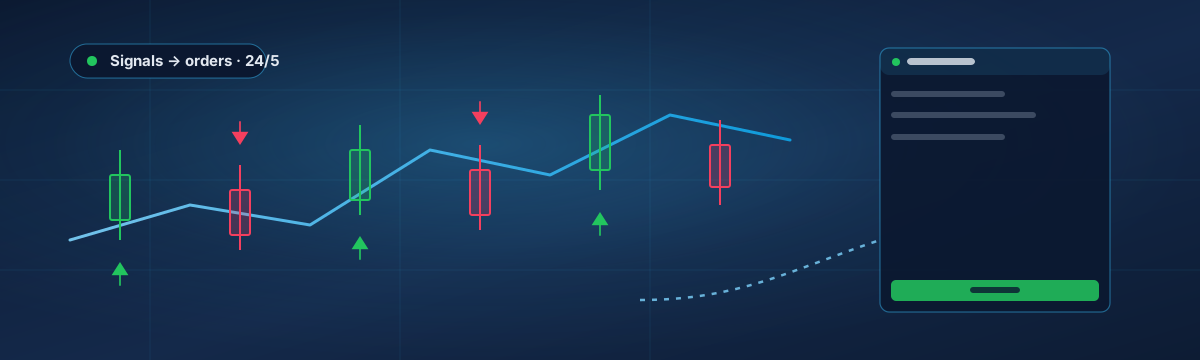
You have an indicator you trust: arrows on the chart, a moving-average cross, a signal buffer from a product bought on the Market. What it does not do is trade. Trade Indicator Assistant is a MetaTrader 5 utility sold on the MQL5 Market by Mohamed Hassan. It reads the buy and sell buffers of whatever indicator sits on the same chart and turns them into orders, with its own rules for lot size, stop loss and take profit. Everything is driven from a panel drawn on the chart, which makes it a natural fit for a Windows VPS: you set it up once over Remote Desktop, then the machine trades while you are away.
This guide goes from an empty FFxF VPS with MetaTrader preinstalled to a chart where the assistant fires on your indicator, and lists the settings worth changing before you leave it unattended. Menus and defaults are those of version 1.10 (September 2026). Two links to keep open: the product page and the author's reference post, which documents every input.
1. What the tool actually does
Attach an indicator to a chart, then attach the assistant. Its Smart Detector scans the indicator's buffers (20 at most, over the last 600 bars), keeps the ones that behave like signal arrows rather than continuous lines, and reports READY once it has found a BUY buffer and a SELL buffer. It also understands chart objects whose name contains words like buy, long, sell or short, and common Wingdings arrows.
From there the panel does the rest: which directions are allowed (BUY ONLY, SELL ONLY, BOTH), automatic or manual execution, position sizing by fixed lot or by percentage of balance, stop loss and take profit in points, in ATR multiples, on the signal candle or taken from the indicator itself, break even, trailing stop, a spread filter, a daily loss cap and a floating drawdown cap. It retries an order that the broker rejected temporarily, and it ships with a recovery mode covered in its own section below, because that one deserves a decision rather than a default.
What it does not do is judge the indicator. A signal that loses money on a chart loses money through the assistant too, just without hesitation. Backtest the pair in the Strategy Tester first: the free demo version from the Market runs there.
2. Why this belongs on a VPS
The assistant lives inside the terminal. When the terminal is closed, no signal is read and no position is managed: no trailing stop, no break even, no daily cap. Its retry logic gives up after two minutes, so a laptop that sleeps through a signal simply misses it. The recovery sequence and the magic number are saved in global variables, which lets the terminal restart cleanly, but a restart is not the same thing as an afternoon offline.
A VPS removes the question. The terminal runs on a machine that stays on, on a wired link, on dedicated cores. Ours are in Montréal, a few milliseconds from the North American broker servers, and can be billed by the hour while you test. The general case is covered in Run MetaTrader on a VPS; here we take the shortest path, the template with MetaTrader already installed.
3. Order a VPS with MetaTrader preinstalled
In the FFxF console, choose a plan, then in the operating system picker open the Trading tab and select Windows Server 2022 + MetaTrader 5. The same template exists for MetaTrader 4 and for Windows Server 2019 and 2025; everything below applies to them, the MT4 version of the assistant behaves the same way.
- Size. Windows templates start at the Starter plan (2 vCPU, 4 GB of RAM, 40 GB SSD); the Nano plan is not offered for Windows. Starter is comfortable for one terminal with a handful of charts; several accounts or heavy custom indicators call for Pro.
- Access. Once delivered, connect with Remote Desktop to the IPv4 shown in the console, user
Administrator, the password from the console. MetaTrader is already installed and starts with Windows; you will find the terminal open. - Broker. In the terminal, File → Login to Trade Account: server, account number and the master password. The read-only investor password shows charts but cannot place orders, so the assistant would sit there doing nothing.
Leave Windows Update on, but let it restart on a Saturday rather than mid-week. The template signs in and relaunches MetaTrader after a reboot on its own.
4. Install the assistant from the Market
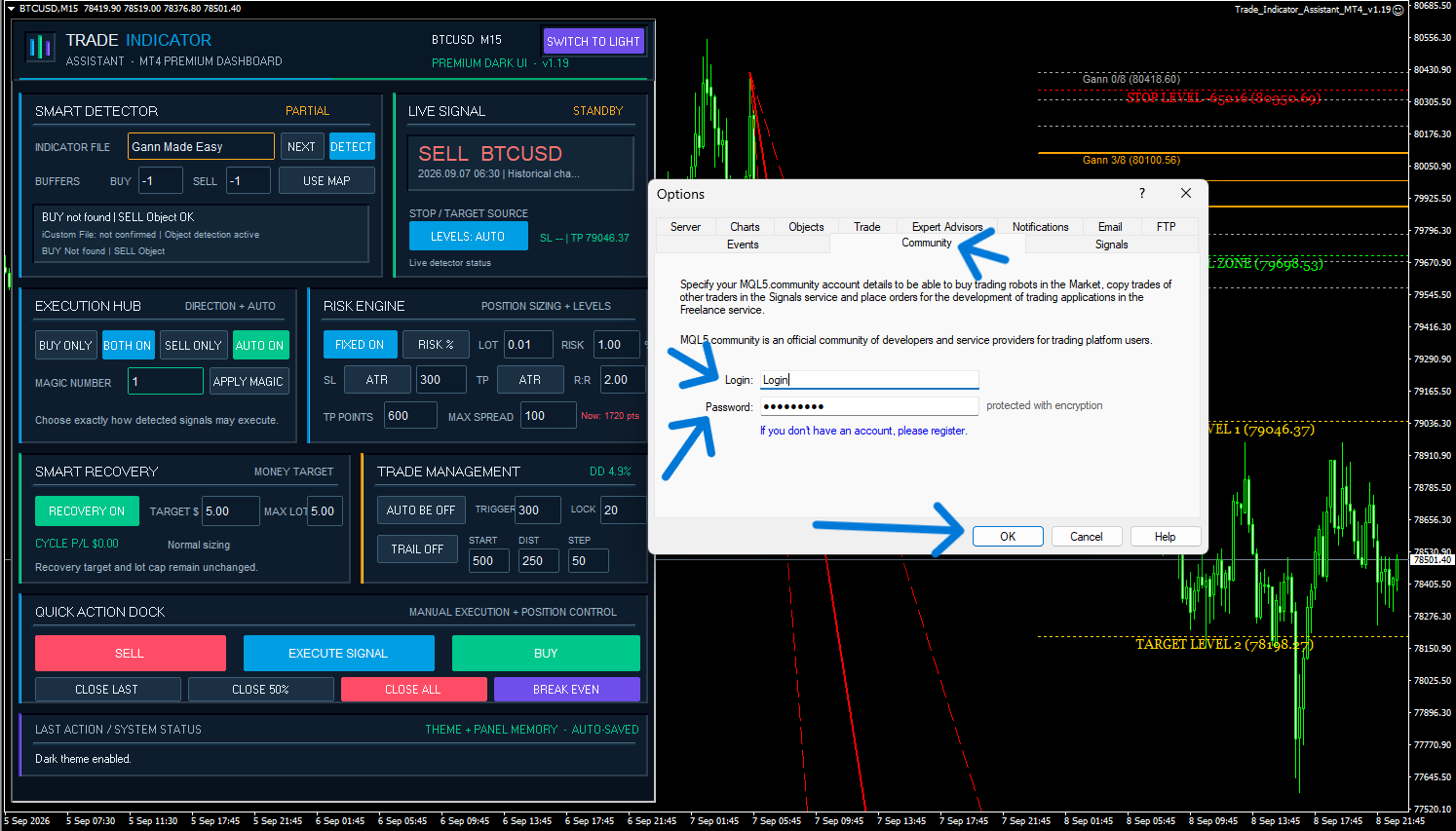
The Market is built into the terminal and needs an MQL5.com account. Enter it under Tools → Options → Community. Then, in the Toolbox window (Ctrl+T), open the Market tab and search for Trade Indicator Assistant MT5.
- Demo first. The Free demo button downloads a version limited to the Strategy Tester. It is enough to check that your indicator is detected and to backtest the pair.
- Buy. At the time of writing the launch price is 100 USD for the first twenty copies, then 150 USD, with 10 activations and a bonus indicator (Trade Signal Pro) thrown in. A purchase appears under Market → Purchases, where an Install button places it in the Navigator under Expert Advisors → Market.
- Your indicator. Same route if it comes from the Market. Otherwise copy the
.ex5file into File → Open Data Folder → MQL5 → Indicators, then right-click the Navigator and choose Refresh. - Algo trading. Under Tools → Options → Expert Advisors, tick Allow algorithmic trading. The Algo Trading button in the toolbar must be green.
5. Attach the indicator, then the assistant
Open a chart on the symbol and timeframe the indicator was designed for. Drag the indicator onto it. Drag the assistant onto the same chart, allow algo trading in the Common tab, leave the inputs alone for now and confirm. The panel appears.

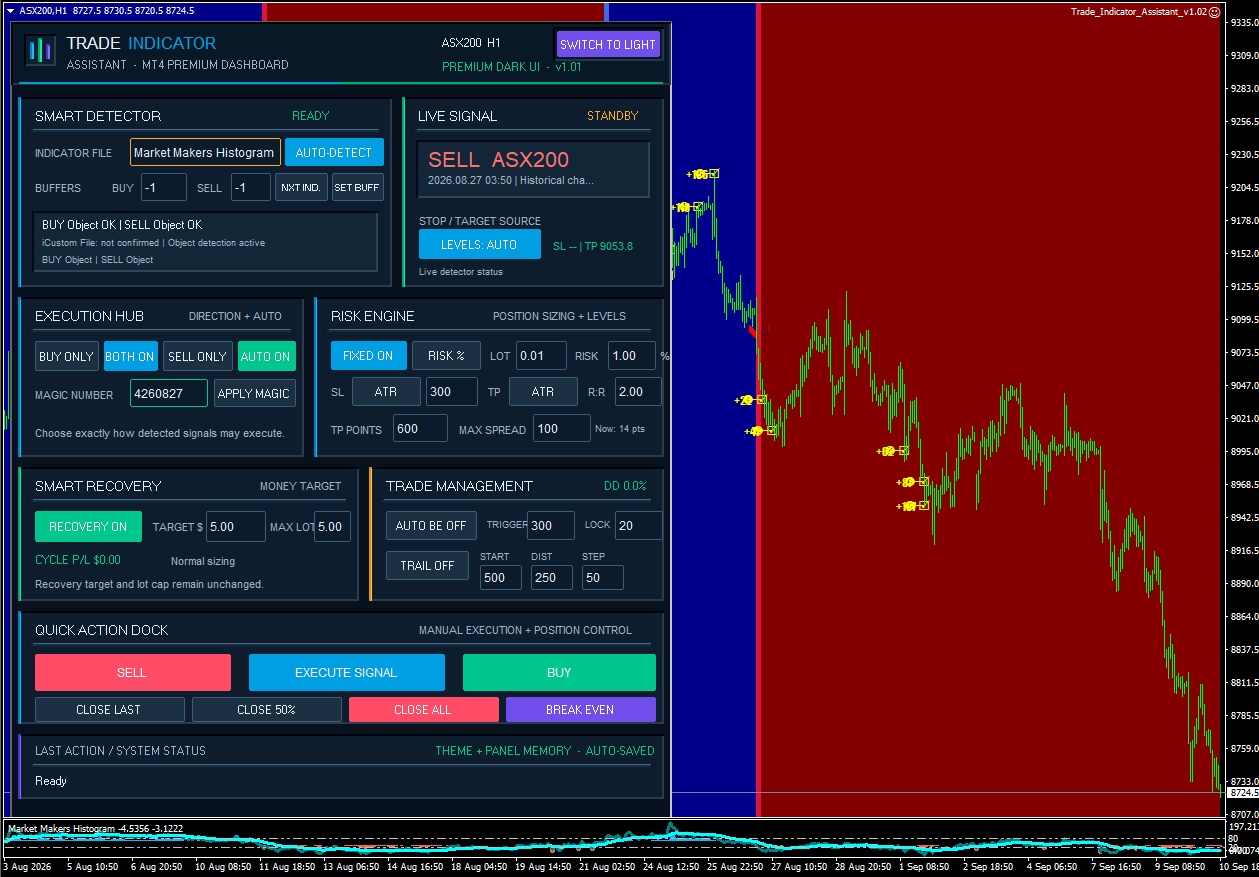
- Smart Detector. The Indicator File line names the indicator being watched and the status reads READY when both buffers were found. If it did not: click AUTO-DETECT; with several indicators on the chart, NXT IND. cycles through them.
- Not recognized? The author's own fix: click in the box next to Indicator File, type the exact file name of the indicator, then AUTO-DETECT again.
- Wrong signals? Set the buffers by hand. Open the Data Window (Ctrl+D), hover an arrow on the chart and note which buffer shows a value on signal bars and empty elsewhere. Type those numbers in the BUY and SELL buffer fields and press SET BUFF.
-1means automatic.

- Confirmation. The input Signal Confirmation defaults to waiting for the signal candle to close. Keep it unless your indicator never repaints; Current Candle reacts on the tick that draws the arrow and will trade arrows that later disappear.
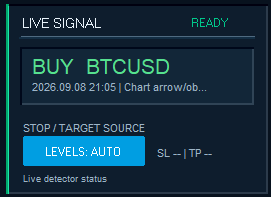
Before automation, watch it work. Leave AUTO OFF in the Execution Hub, wait for the Live Signal box to switch from STANDBY to READY with a direction, symbol and time, and press EXECUTE SIGNAL once on a demo account. The Experts tab of the Toolbox logs what the tool decided and why.
6. Size the risk before switching AUTO on
The defaults are those of a cautious test account, not of your account. The inputs below are the ones to visit, with their default values in brackets.
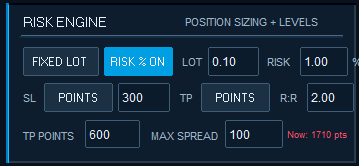
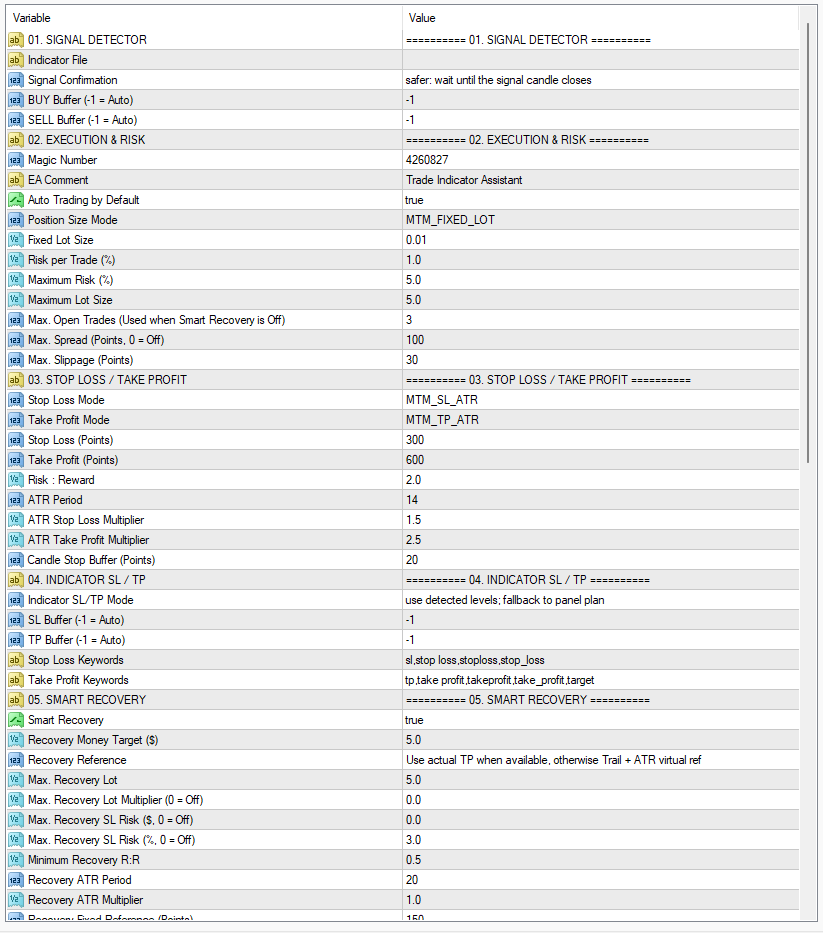
- Position size. Position Size Mode [FIXED LOT], Fixed Lot Size [0.01], Risk per Trade [1 %] capped by Maximum Risk [5 %]. Whatever the mode, lower Maximum Lot Size [5.0] to what the account can absorb on one bad trade.
- Exposure. Max. Open Trades [3], Max. Spread [100 points, 0 turns it off], Max. Slippage [30 points]. The spread filter is what stops the tool from trading a news spike at a terrible price.
- Stop loss and target. Stop Loss Mode [ATR: period 14, multiplier 1.5] and Take Profit Mode [ATR, multiplier 2.5]. Alternatives: fixed points [300 / 600], a risk-to-reward ratio [2.0] applied to the stop distance, or the signal candle's extreme plus a buffer [20 points].
- Indicator levels. If your indicator draws its own stop and target, the LEVELS button (or the Indicator SL/TP Mode input) picks between AUTO, which uses them when found and falls back to the panel, MANAGER, which ignores them, and IND ONLY.
- Account protection. Max. Daily Loss and Max. Floating Drawdown are both off [0]. On a machine you are not watching, set them; 3 % of the day's starting balance and 10 % floating are sane starting points. They block new entries, they do not close what is open.
- Break even and trailing. Off by default. Break even moves the stop after [300] points of profit and locks [20]; trailing starts at [500] points, follows at [250], moves in steps of [50]. Manage Current Symbol Only [true] keeps each instance to its own chart.
- Magic number. [4260827] identifies the tool's trades. Running several charts means one distinct number per chart, applied with APPLY MAGIC.
7. Smart Recovery: know what you switch on
Smart Recovery is enabled by default. After the first losing managed trade it opens a recovery cycle: the following trades are sized so that a win brings the cycle back to a profit target [Recovery Money Target, 5 $], and the tool restricts itself to one open trade until the cycle closes. In plain words, lots grow after losses. On a small account with a noisy indicator, that is how a series of small losses turns into one large one.
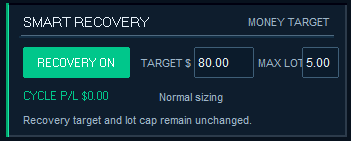
Left alone on a VPS, this is the setting to decide on before anything else. Either turn it off, or fence it: Max. Recovery Lot Multiplier [0, off] set to two or three times the base lot, Max. Recovery SL Risk (%) kept at [3 %] or lower, and Skip Trade if Recovery Safety Limit is Exceeded switched to true so that a cycle the limits cannot cover is dropped instead of forced. The sequence is saved across restarts [Save Recovery Sequence after Restart, true], which is what you want on a machine that reboots for updates; Reset Recovery Sequence on Start clears it deliberately.
8. Let it run, then check on it
- Disconnect, do not sign out. Close the Remote Desktop window when you are done. Signing out of Windows closes the terminal. After a reboot the template signs in and relaunches MetaTrader without you.
- An hour later. Reconnect and look at three things: the Algo Trading button is green, the Live Signal time is recent, and the Last Action / System Status box at the bottom of the panel shows detections and executions rather than blocked trades.
- Logs. Detailed Experts Logging is on by default: the Toolbox's Experts tab records each detection, each order and each refusal (spread, daily cap, broker stop level). The Journal tab is the terminal's own view of the same events.
- Retries. A temporarily rejected order (requote, off quotes) is retried every 2 seconds for up to 120 seconds and 30 attempts. If a signal keeps being blocked, the reason is in the panel's status line.
- Several indicators. One chart each, one assistant each, one magic number each. The tool only manages trades of its own magic and, by default, of its own symbol.
- Time. The panel shows broker server time; the daily loss cap counts from the broker's day start, not from Montréal midnight.

9. Lock it down and back it up
The machine now holds the master password of a live account. Restrict Remote
Desktop to your own IP in the console firewall, or reach it through a
WireGuard tunnel, and turn on two-factor
authentication at the broker. Then save your work twice: in MetaTrader, right-click
the chart, Templates → Save Template to keep the indicator and the
assistant together, and in the assistant's inputs dialog use Save to write
a .set file with your risk settings. Once the configuration is final,
take a backup from the console; seven manual backups are included.
Checklist
- VPS ordered with the Windows + MetaTrader 5 template, Starter plan or above.
- Broker account logged in with the master password, Algo Trading green.
- Assistant installed from the Market, indicator on the chart, Smart Detector READY.
- One signal executed by hand on a demo account and checked in the Experts log.
- Maximum lot, spread filter, daily loss and floating drawdown caps set.
- Smart Recovery either off or fenced by the multiplier and the risk cap.
- Template and .set file saved, console backup taken, RDP restricted.
Which broker server is closest, and how much latency actually matters for your timeframe, is the subject of Choosing a Forex trading VPS.